
Your work schedule
The Work schedule shows your personal plan. It answers “What am I working on that day?” and complements the board, which shows the work's status.
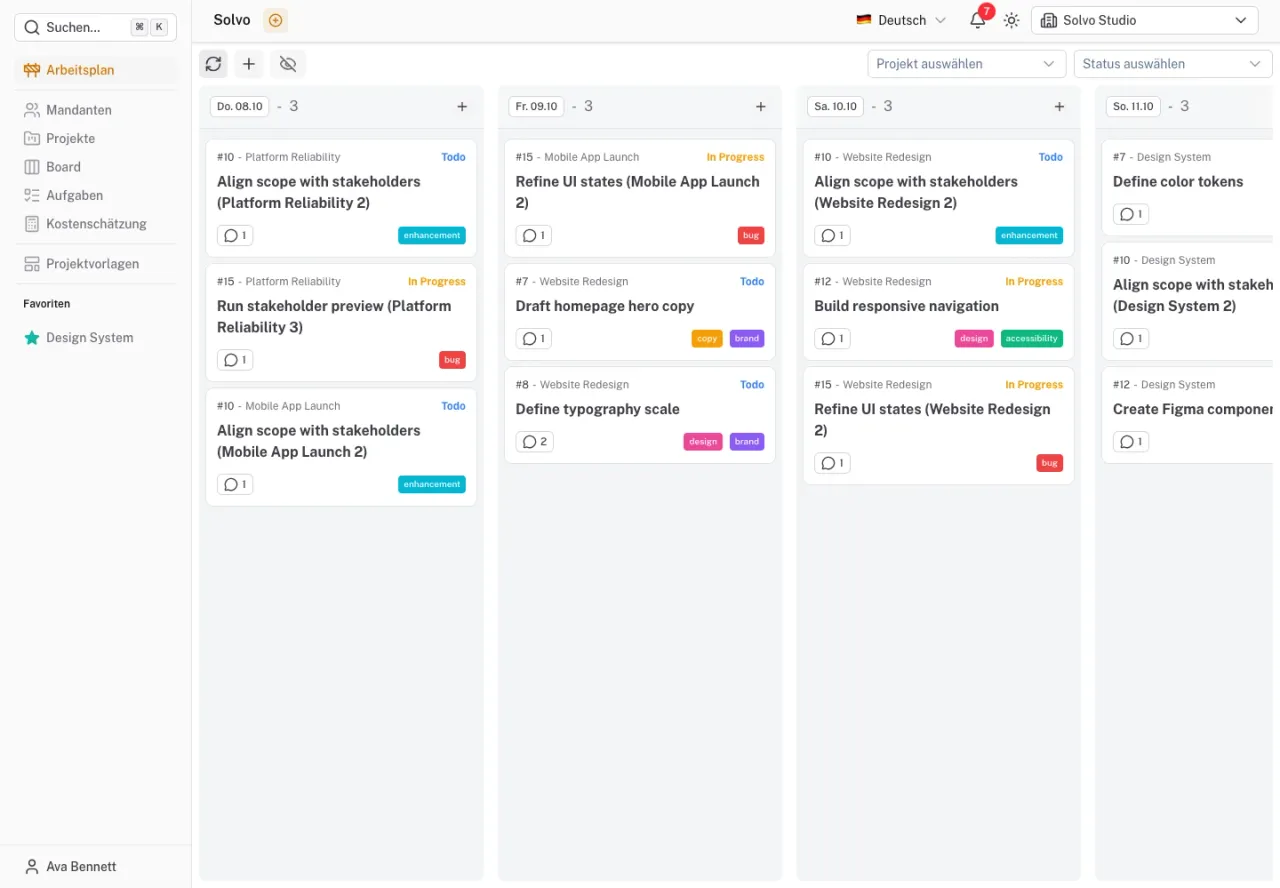
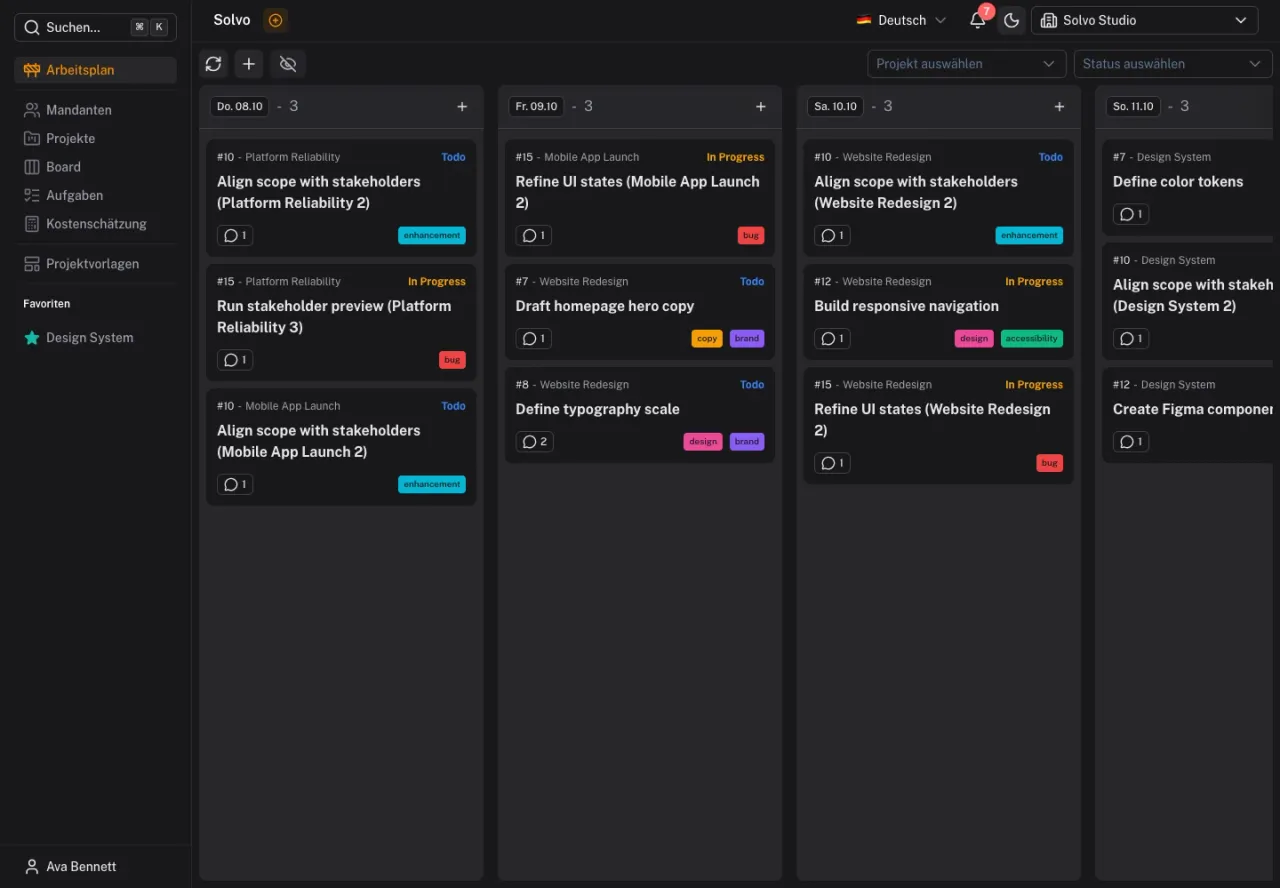
Schedule a task
Open Work schedule and use the add-task function. Choose the task and the desired day. You can also set the Planning date in the task details.
Only plan as much work as you can realistically handle that day. Open an entry to check its description, comments or status.
Planning date and due date
| Date | Question | Example |
|---|---|---|
| Planning date | When do I want to work on it? | Tuesday: revise the copy |
| Due date | When must the result be finished? | Friday: approval for publication |
Moving an entry in the work schedule does not change the task's deadline. Check both dates when a timeline changes.
Which tasks can be scheduled?
A task's status must allow it to appear in the work schedule. If the planning date is disabled, check the tenant's status configuration. A status such as “Done” does not need to appear in daily planning.
Keep your plan clear
Use project and status filters to focus on one area. The option to show hidden entries lets you find tasks you previously hid.
If a task changes assignee or moves to a status that cannot be scheduled, its previous planning entry may be removed. Check the work schedule after such changes.