
Board and filters
Project board and shared board
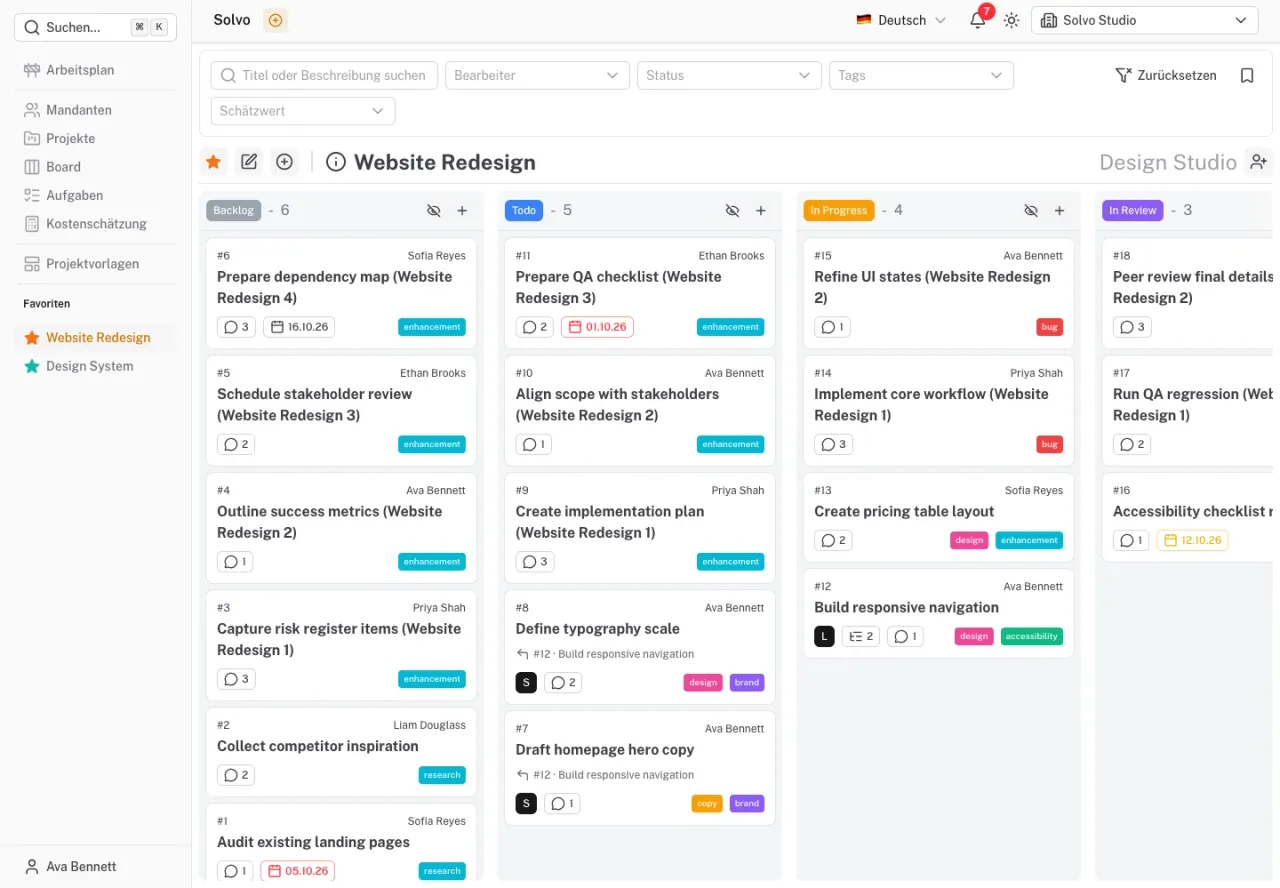
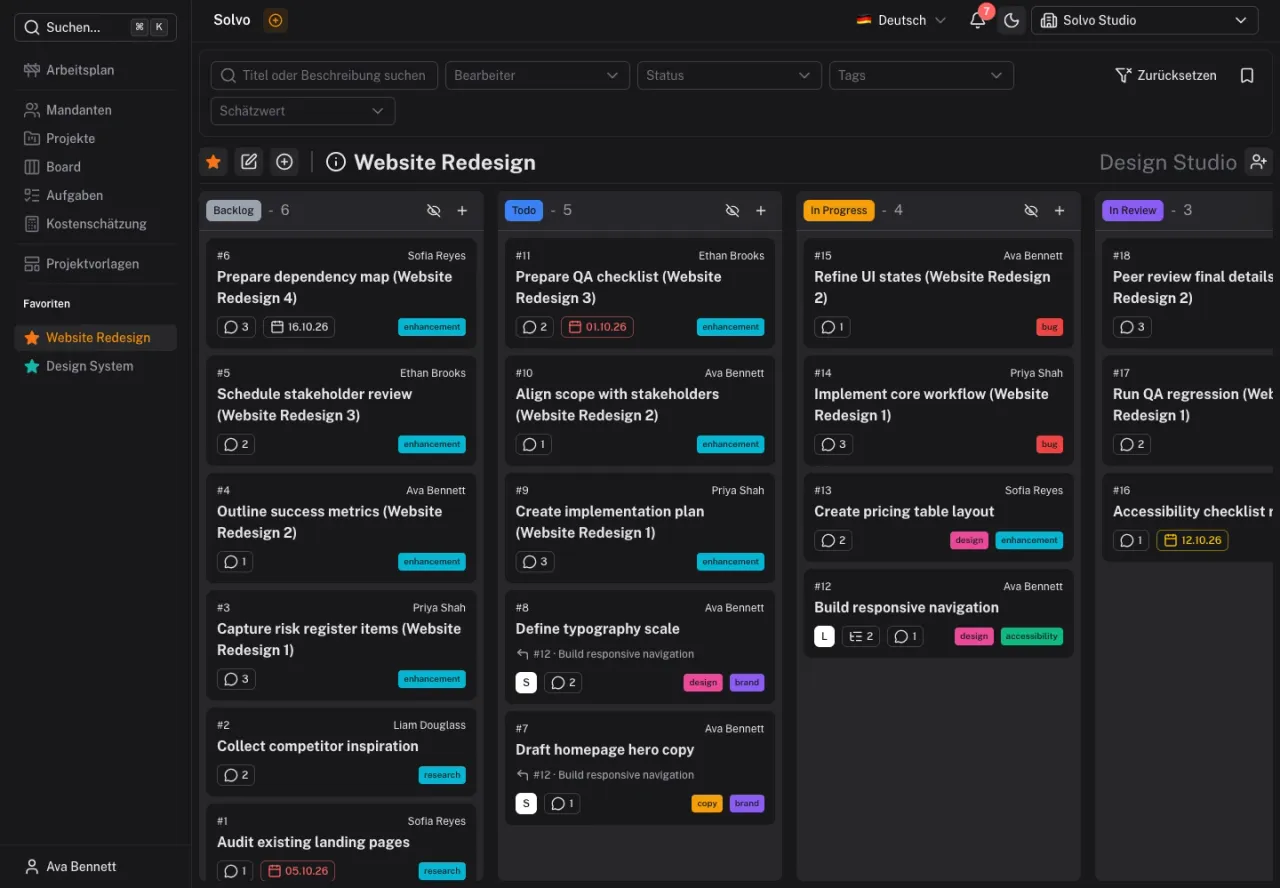
Open a project board using the board icon in a project's row. It focuses on one initiative. Board in the left navigation opens the cross-project view for the selected organization and the projects you can access.
Move a task forward
Drag a card into the appropriate status column or change its status in the task details. Within a column, you can reorder cards by dragging them.
Status labels are configurable. In the demo project, Backlog means work that has not yet been planned, Todo means upcoming work, In Progress means work underway, and In Review means work being checked. Done marks completed tasks.
A status may trigger additional rules, such as automatic assignment, a later status change or archiving. Agree on these rules with your team; they are configured in the workflow settings.
Filter instead of searching through everything
Use the title or description search and the filters for assignee, status, tags and estimation card. On the shared board, you can also narrow the area down by tenant and project.
A typical starting point for daily work: select your project, your name as the assignee and the open statuses. Use Reset to remove the filters you have set.
The task list
Under Tasks, you can view work as a list. This is useful for targeted searches and reviewing many tasks. Open a task from the list to edit the same details available on the board.
A task is missing?
Check the organization selector, project or tenant filter, other filters and archive status in that order. If the task is still missing, have your project access checked. External members can see a restricted set of tasks.