
Statuses, tags and attributes
Manage statuses in a tenant
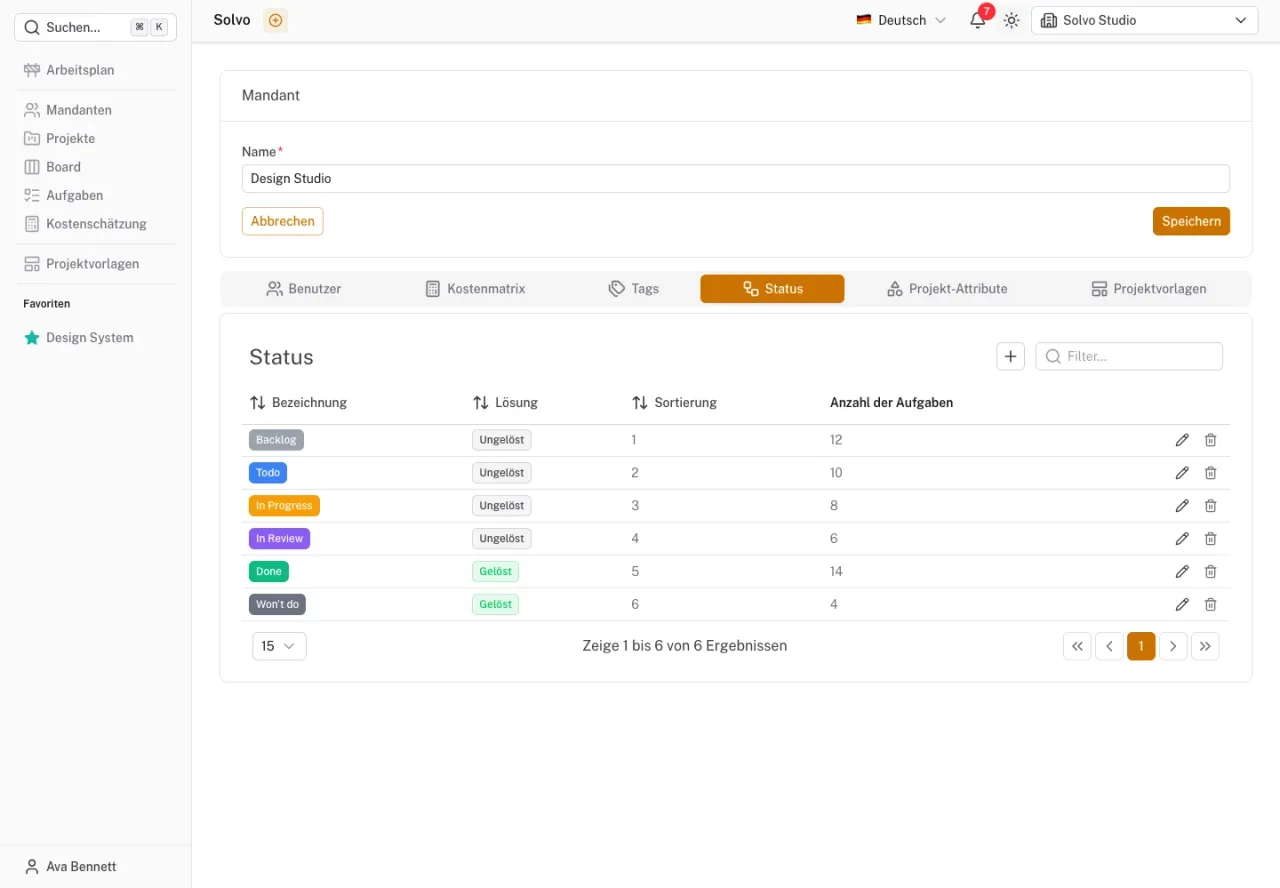
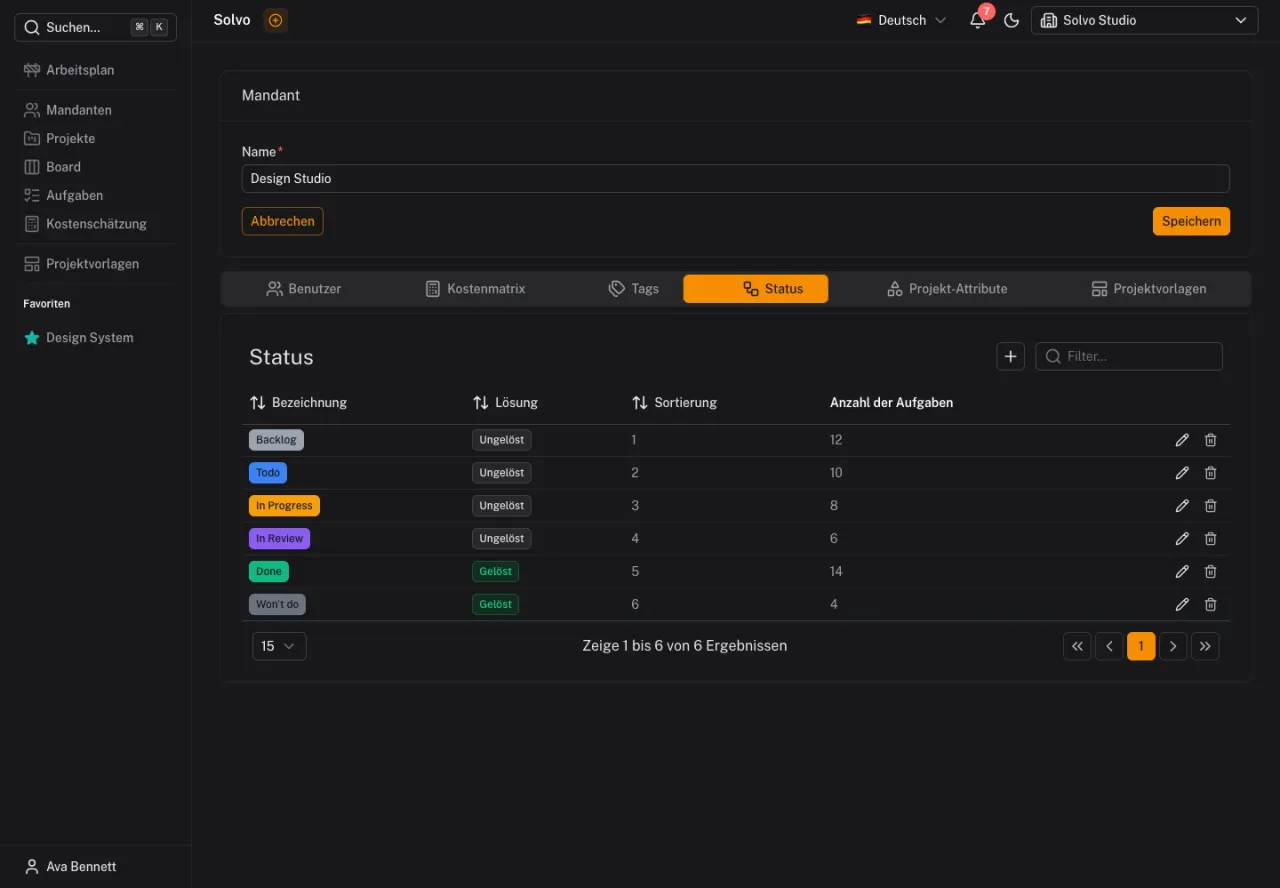
Open a tenant's settings and the Statuses tab. Its statuses apply to its projects. Choose names, colors and an order that make the board columns clear to the team.
Status rules
A status can define behavior beyond its appearance:
- Resolution: Indicates whether the work is open or completed.
- Automatic assignment: Can assign a task without an assignee to the acting user when its status changes.
- Show in work schedule: Determines whether tasks with this status can be scheduled.
- Follow-up status and delay: Allow a later automatic status change.
- Automatic archiving and delay: Remove completed work from active views later.
The time-based rules require the platform's regular background processing. A status change alone does not mean the delay has already elapsed.
Tags
Use the Tags tab to manage topic labels and their colors. Choose a small set of clear terms, such as “Design”, “Feedback” or “Bug”. Tags complement statuses and help with filtering.
Custom attributes
Additional data fields can be configured through attribute management. In the tenant, Project attributes are used for information on projects.
Choose a field type that suits the content. For selection fields, define the available options. Use validation and searchability deliberately when the fields offer these functions. Changes to required information should be agreed with the people who maintain it.
Agree on changes with your team
Test new rules on an example task first. Then check the board, task details and work schedule. Automatic status changes and archiving in particular should be understandable to the team.