Tasks and subtasks
Create a task
Open the project board and use the add button in the appropriate status column. You can also create tasks from the tasks view.
- Select the project and status if they are not already filled in.
- Write a clear title.
- Describe the goal, required information and expected result.
- Choose an assignee and, if needed, tags and a due date.
- Save the new task.
Task details
Click a card on the board or open a task from the list. The detail window contains its description, comments and additional fields. Select Show additional details to reveal more information.
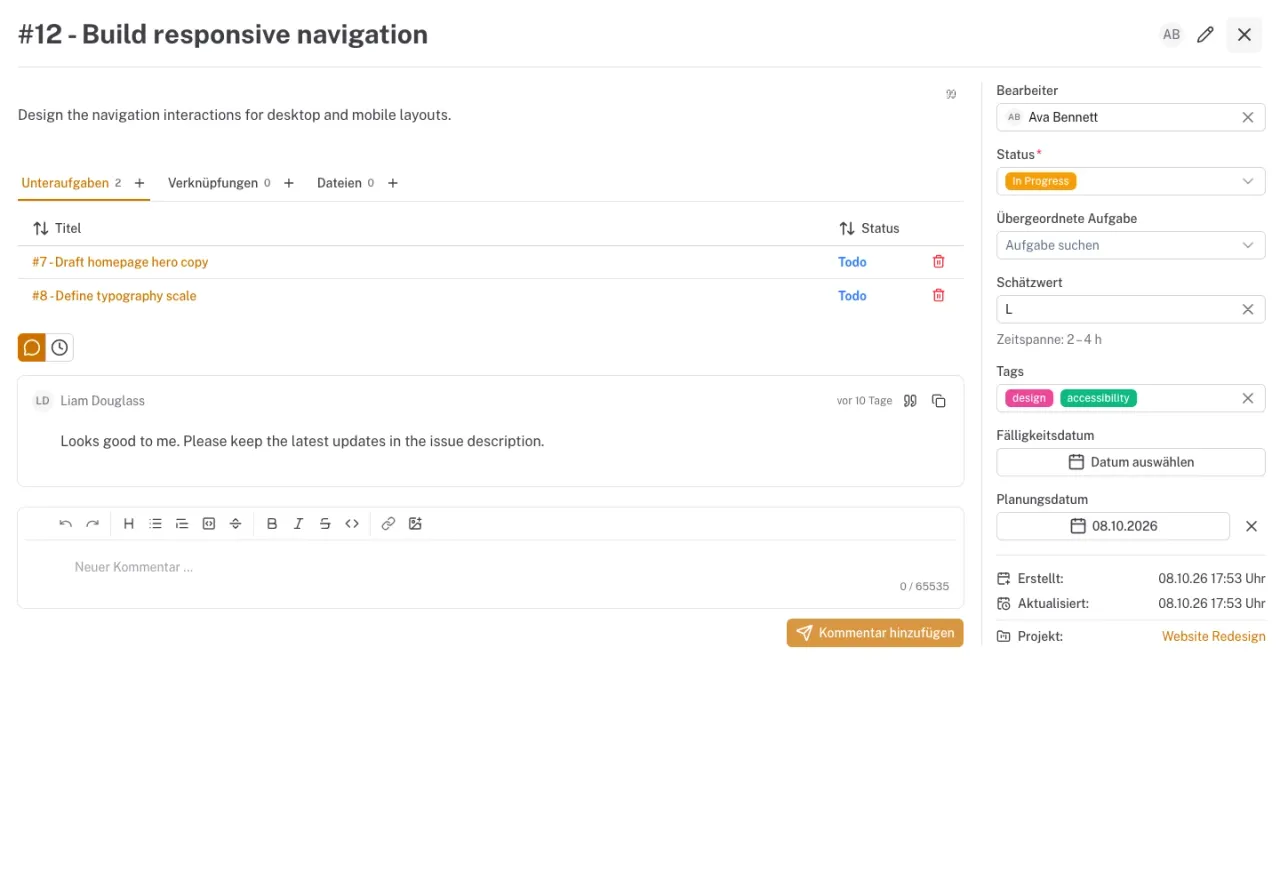
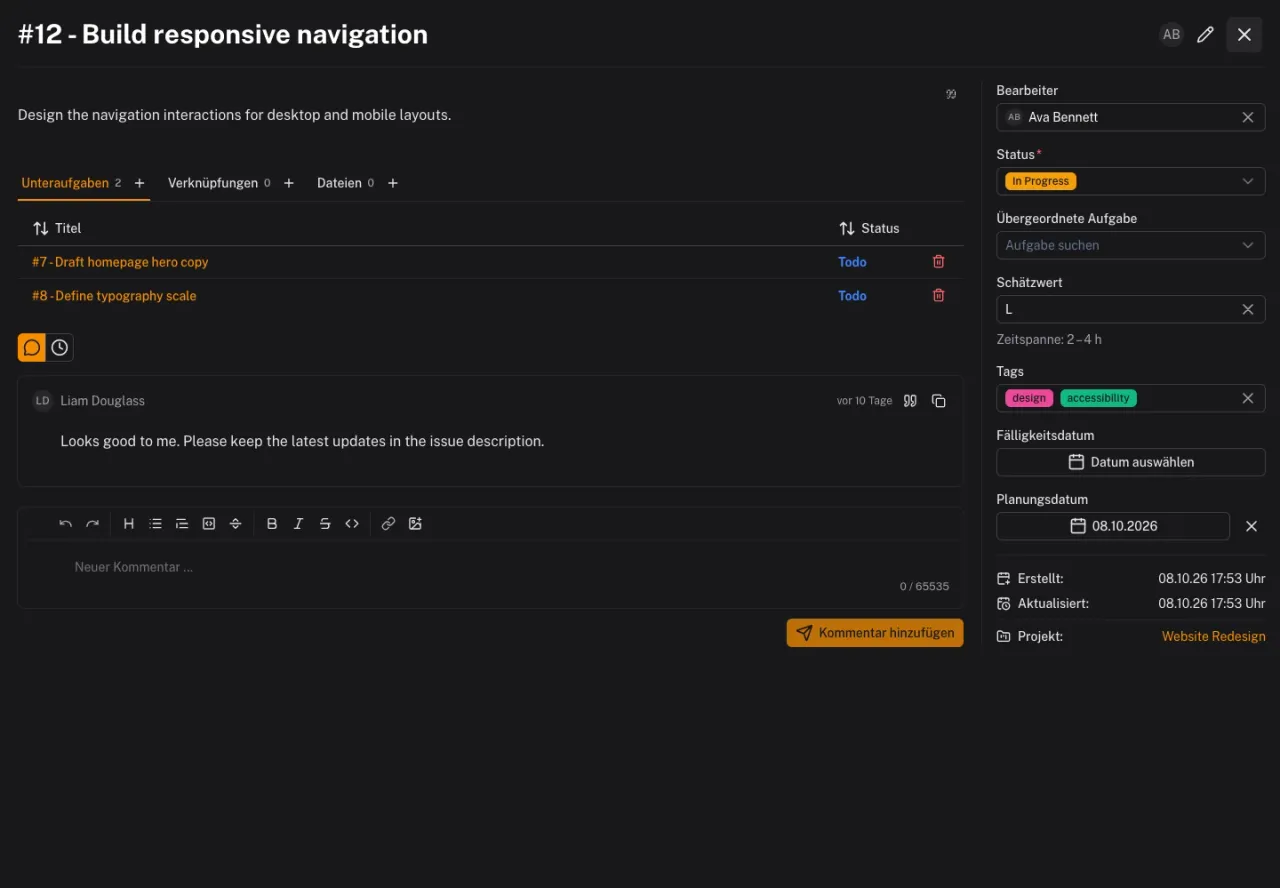
| Field | What you use it for |
|---|---|
| Status | Record the current progress of the work |
| Assignee | Identify the person responsible |
| Tags | Categorize tasks by topic |
| Due date | Set the deadline for the finished result |
| Planning date | Schedule work for a specific day |
| Estimation card | Assess effort when estimation is enabled in the project |
| Parent task | Assign the task to a larger piece of work |
For existing tasks, changes to selection fields such as status, assignee and tags are saved directly. Use the editing function for the title and description, and finish that step by saving.
Use subtasks
Open a larger task and select Create subtask. Describe a step that can be worked on individually, and assign responsibility and a status. The subtask belongs to the same project.
Use Parent task to link an existing task to a parent or remove the link. The parent task's details list its subtasks, which you can open from there.
Comments, files and subscribers
Use comments for questions, decisions and progress updates. Mention people with @ to draw their attention to a particular point. Attach the required files to the task so that context and results stay together.
Use Subscribers to add people who should follow changes. The alerts they receive depend on their notification settings.
Archived tasks
Archiving removes tasks from active work. Depending on the status configuration, this may happen automatically. If older tasks are missing, check the archive filter and your permissions before creating them again.